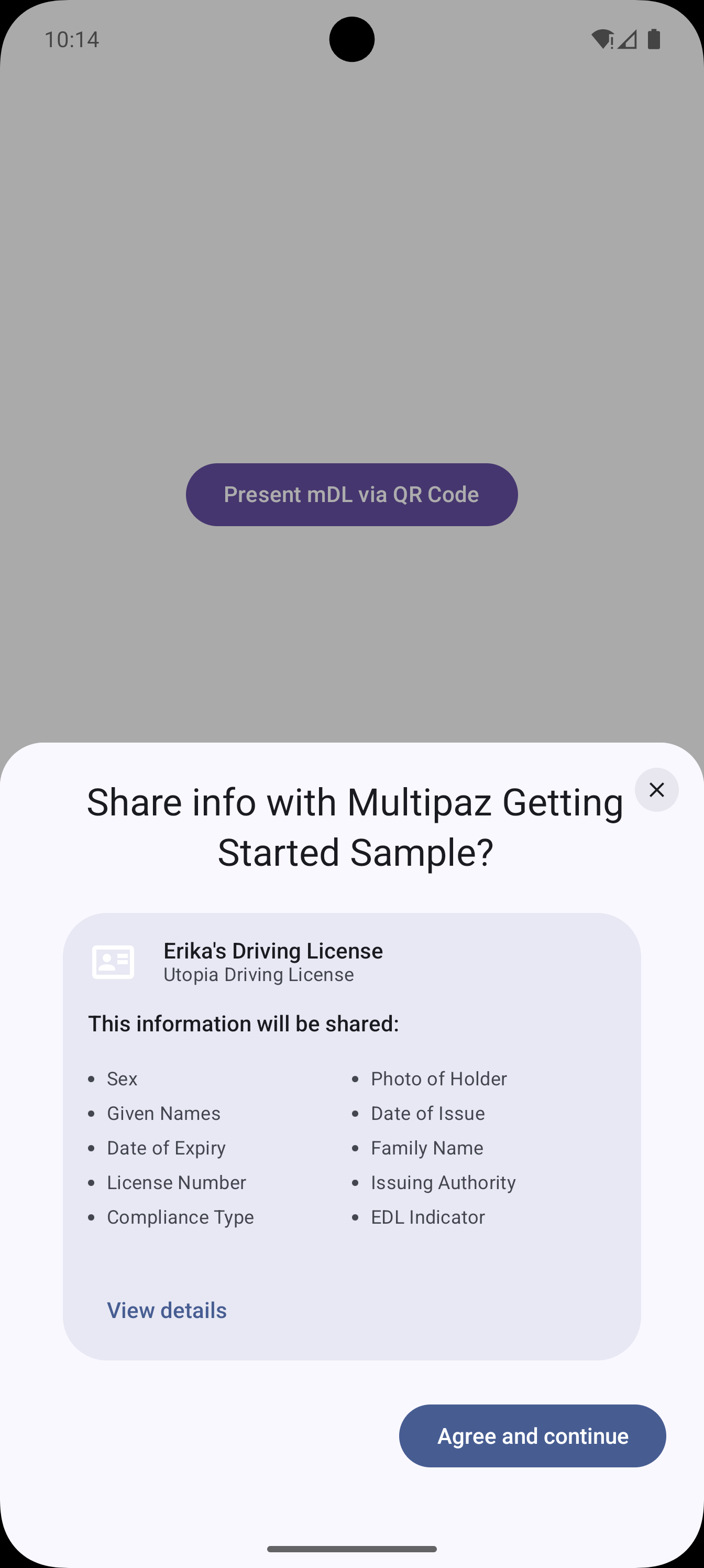
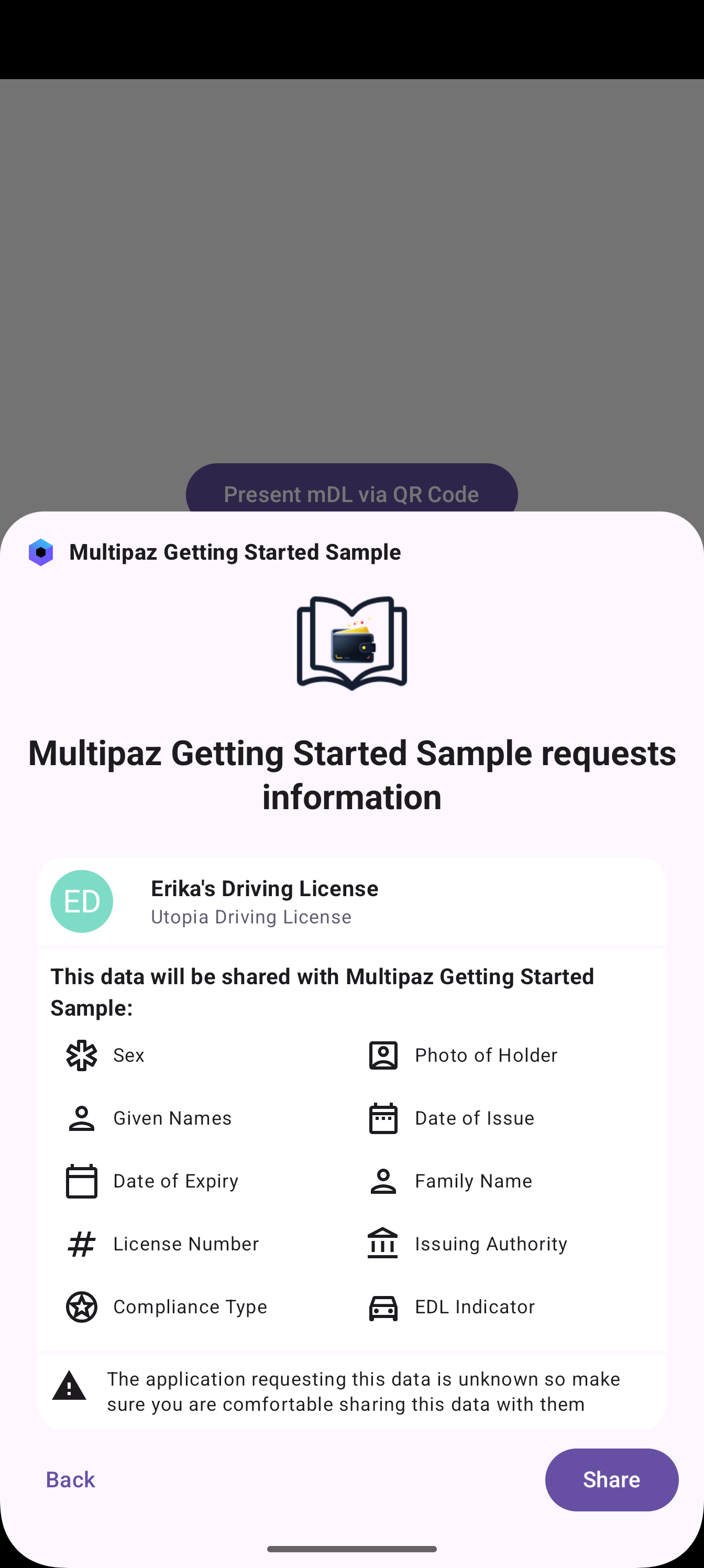
Native Digital Credentials Verification
This guide builds on top of the completed Getting Started app. Make sure you have followed the full Getting Started guide first.
The native W3C DC implementation allows your Android app to interact with verifiers through direct API calls, supporting secure and privacy-preserving credential presentment flows. To implement this using the Multipaz SDK, these steps are required:
- Implementing the core W3C DC request flow (shared code)
- Implementing the
getAppToAppOrigin()function for Android - Setting up cryptographic key management (shared code)
- Configuring reader trust management for verifiers (shared code)
- Integrating the flow into your UI
Native W3C DC implementation is currently only supported on Android since it uses platform-specific requirements. iOS support will be available soon.
- Android: Uses package name + certificate fingerprint for app identification
Implementation Steps
1. Create the feature/verification module
To create a new module: File → New → New Module → Kotlin Multiplatform Shared Module. Name it as shown in the table above and configure the package name (e.g., org.multipaz.getstarted.verification for feature:verification).
Update the build.gradle.kts file for the module:
// feature/verification/build.gradle.kts
plugins {
    alias(libs.plugins.composeMultiplatform)
    alias(libs.plugins.composeCompiler)
    alias(libs.plugins.kotlinSerialization)
}
kotlin {
    jvmToolchain(17)

    androidLibrary {

        androidResources.enable = true

        @OptIn(ExperimentalKotlinGradlePluginApi::class)
        compilerOptions {
            jvmTarget.set(JvmTarget.JVM_17)
        }
    }

    sourceSets {
       commonMain.dependencies {
            implementation(project(":core"))

            implementation(libs.multipaz)
            implementation(libs.multipaz.compose)
            implementation(libs.multipaz.doctypes)
            implementation(libs.multipaz.dcapi)
            implementation(compose.components.resources)
       }
   }
}
Refer to this verification build.gradle.kts code for the complete example.
Also add the dependency in composeApp/build.gradle.kts:
// composeApp/build.gradle.kts
kotlin {
    sourceSets {
        commonMain.dependencies {
            // ... other dependencies
            implementation(project(":feature:verification"))
        }
    }
}
Refer to this composeApp build.gradle.kts code for the complete example.
2. Dependencies
The native credentials verification feature requires the Multipaz DC API library. Please make sure to add these to libs.versions.toml if not already present:
gradle/libs.versions.toml
[versions]
multipaz = "0.99.0" # latest version of Multipaz

[libraries]
multipaz-dcapi = { group = "org.multipaz", name = "multipaz-dcapi", version.ref = "multipaz" }
Refer to this code for the complete example.
- Add the dependency to the
:coremodule'sbuild.gradle.ktsfile:
// core/build.gradle.kts
kotlin {
   sourceSets {
       commonMain.dependencies {
           // ... other dependencies
          implementation(libs.multipaz.dcapi)
       }
   }
}
Refer to this code for the complete example.
3. Implement Core W3C DC Request Flow
The W3C Digital Credentials flow involves several cryptographic operations and network requests. Here's the concrete implementation:
All the helper functions for this feature are implemented in a separate file called W3CDCCredentialsRequestButton.kt inside the feature/verification module (package org.multipaz.getstarted.verification) in the get started sample.
// verification/W3CDCCredentialsRequestButton.kt
@OptIn(ExperimentalTime::class)
private suspend fun doDcRequestFlow(
    appReaderKey: AsymmetricKey.X509Certified,
    request: DocumentCannedRequest,
    showResponse: (
        vpToken: JsonObject?,
        deviceResponse: DataItem?,
        sessionTranscript: DataItem,
        nonce: ByteString?,
        eReaderKey: EcPrivateKey?,
        metadata: ShowResponseMetadata
    ) -> Unit
) {
    require(request.mdocRequest != null) { "No ISO mdoc format in request" }

    // Step 1: Generate cryptographic materials
    // Random nonce for request/response correlation (prevents replay attacks)
    val nonce = ByteString(Random.Default.nextBytes(NONCE_SIZE_BYTES))

    // Ephemeral key for encrypting the response (ensures confidentiality)
    val responseEncryptionKey = Crypto.createEcPrivateKey(RESPONSE_ENCRYPTION_CURVE)

    // Step 2: Get platform-specific app origin
    val origin = getAppToAppOrigin()

    val readerCert = appReaderKey.certChain.certificates.first()
    val clientId = "x509_hash:" +
        Crypto.digest(Algorithm.SHA256, readerCert.encoded.toByteArray()).toBase64Url()

    // Step 3: Configure protocol
    val protocolDisplayName = "OpenID4VP 1.0"
    val exchangeProtocolNames = listOf("openid4vp-v1-signed")

    // Step 4: Build list of requested claims
    val claims = mutableListOf<MdocRequestedClaim>()
    request.mdocRequest!!.namespacesToRequest.forEach { namespaceRequest ->
        namespaceRequest.dataElementsToRequest.forEach { (mdocDataElement, intentToRetain) ->
            claims.add(
                MdocRequestedClaim(
                    namespaceName = namespaceRequest.namespace,
                    dataElementName = mdocDataElement.attribute.identifier,
                    intentToRetain = intentToRetain
                )
            )
        }
    }

    // Step 5: Build the W3C DC request object
    val dcRequestObject = VerificationUtil.generateDcRequestMdoc(
        exchangeProtocols = exchangeProtocolNames,
        docType = request.mdocRequest!!.docType,
        claims = claims,
        nonce = nonce,
        origin = origin,
        responseEncryptionKey = responseEncryptionKey.publicKey,
        verifierIdentities = listOf(VerifierIdentity(appReaderKey, clientId)),
        zkSystemSpecs = emptyList()
    )

    // Step 6: Send request via W3C DC API and measure response time
    val t0 = Clock.System.now()
    val dcResponseObject = DigitalCredentials.getDefault().request(dcRequestObject)

    // Step 7: Decrypt and parse response
    val dcResponse = VerificationUtil.decryptDcResponse(
        response = dcResponseObject,
        nonce = nonce,
        origin = origin,
        responseEncryptionKey = AsymmetricKey.anonymous(
            privateKey = responseEncryptionKey,
            algorithm = responseEncryptionKey.curve.defaultKeyAgreementAlgorithm
        )
    )

    // Step 8: Create metadata for analytics/logging
    val metadata = ShowResponseMetadata(
        engagementType = METADATA_ENGAGEMENT_TYPE,
        transferProtocol = "$METADATA_TRANSFER_PROTOCOL_PREFIX ($protocolDisplayName)",
        requestSize = Json.encodeToString(dcRequestObject).length.toLong(),
        responseSize = Json.encodeToString(dcResponseObject).length.toLong(),
        durationMsecNfcTapToEngagement = null,
        durationMsecEngagementReceivedToRequestSent = null,
        durationMsecRequestSentToResponseReceived = (Clock.System.now() - t0).inWholeMilliseconds
    )

    // Step 9: Handle response based on protocol format
    when (dcResponse) {
        is MdocApiDcResponse -> {
            // ISO 18013-7 mDoc format response
            showResponse(
                null,
                dcResponse.deviceResponse,
                dcResponse.sessionTranscript,
                nonce,
                null,
                metadata
            )
        }

        is OpenID4VPDcResponse -> {
            // OpenID4VP format response
            showResponse(
                dcResponse.vpToken,
                null,
                dcResponse.sessionTranscript,
                nonce,
                null,
                metadata
            )
        }
    }
}
What does this do?
- Step 1: Generates a random nonce (prevents replay attacks) and creates an ephemeral encryption key for the response
- Step 2: Gets the platform-specific app identifier (Android: package + certificate fingerprint)
- Step 3: Configures the exchange protocol (OpenID4VP in this example)
- Step 4: Extracts the specific data elements (claims) being requested from the credential
- Step 5: Builds the W3C DC request object with all necessary parameters, signed with verifier identities
- Step 6: Sends the request via W3C DC API and measures response time
- Step 7: Decrypts the response using the ephemeral key and validates it
- Step 8: Creates metadata for tracking request/response sizes and timing
- Step 9: Handles the response based on format (mDoc API or OpenID4VP)
See the DC Request Flow Function Code for the complete implementation.
4. Define Constants and Model Classes
Constants File
All the required constants for the native verification feature are defined in verification/W3CDCConstants.kt.
class W3CDCConstants {
    companion object {
        const val NONCE_SIZE_BYTES = 16
        val RESPONSE_ENCRYPTION_CURVE = EcCurve.P256
        const val METADATA_ENGAGEMENT_TYPE = "OS-provided CredentialManager API"
        const val METADATA_TRANSFER_PROTOCOL_PREFIX = "W3C Digital Credentials"
    }
}
Note: Copy the entire verification/W3CDCConstants.kt file to reference all constants used by this feature.
Model Classes
The data model classes required for the native verification feature are defined in verification/W3CDCModels.kt.
// verification/W3CDCModels.kt

/* Models used for W3C DC Native Flow */

@CborSerializable
data class ShowResponseMetadata(
    val engagementType: String,
    val transferProtocol: String,
    val requestSize: Long,
    val responseSize: Long,
    val durationMsecNfcTapToEngagement: Long?,
    val durationMsecEngagementReceivedToRequestSent: Long?,
    val durationMsecRequestSentToResponseReceived: Long
)

data class RequestEntry(
    val displayName: String,
    val documentType: DocumentType,
    val sampleRequest: DocumentCannedRequest
)

@Serializable
data class ShowResponseDestination(
    val vpResponse: String?,
    val deviceResponse: String?,
    val sessionTranscript: String?,
    val nonce: String?,
    val eReaderKey: String?,
    val metadata: String?
)

/* Helper functions used for W3C DC Native Flow */

fun ShowResponseMetadata.toDataItem(): DataItem {
    val builder = CborMap.builder()
    builder.put("engagementType", Tstr(this.engagementType))
    builder.put("transferProtocol", Tstr(this.transferProtocol))
    builder.put("requestSize", this.requestSize.toDataItem())
    builder.put("responseSize", this.responseSize.toDataItem())
    val durationMsecNfcTapToEngagement = this.durationMsecNfcTapToEngagement
    if (durationMsecNfcTapToEngagement != null) {
        builder.put("durationMsecNfcTapToEngagement", durationMsecNfcTapToEngagement.toDataItem())
    }
    val durationMsecEngagementReceivedToRequestSent =
        this.durationMsecEngagementReceivedToRequestSent
    if (durationMsecEngagementReceivedToRequestSent != null) {
        builder.put(
            "durationMsecEngagementReceivedToRequestSent",
            durationMsecEngagementReceivedToRequestSent.toDataItem()
        )
    }
    builder.put(
        "durationMsecRequestSentToResponseReceived",
        this.durationMsecRequestSentToResponseReceived.toDataItem()
    )
    return builder.end().build()
}

fun buildShowResponseDestination(
    vpToken: JsonObject?,
    deviceResponse: DataItem?,
    sessionTranscript: DataItem,
    nonce: ByteString?,
    eReaderKey: EcPrivateKey?,
    metadata: ShowResponseMetadata
): ShowResponseDestination {

    fun JsonObject?.jsonBase64() =
        this?.let { Json.encodeToString(it).encodeToByteArray().toBase64Url() }

    fun DataItem?.cborBase64() =
        this?.let { Cbor.encode(it).toBase64Url() }

    fun DataItem.cborBase64Required() =
        Cbor.encode(this).toBase64Url()

    fun ByteString?.base64() =
        this?.toByteArray()?.toBase64Url()

    fun EcPrivateKey?.coseKeyBase64() =
        this
            ?.toCoseKey()
            ?.toDataItem()
            ?.let { Cbor.encode(it).toBase64Url() }

    return ShowResponseDestination(
        vpResponse = vpToken.jsonBase64(),
        deviceResponse = deviceResponse.cborBase64(),
        sessionTranscript = sessionTranscript.cborBase64Required(),
        nonce = nonce.base64(),
        eReaderKey = eReaderKey.coseKeyBase64(),
        metadata = metadata.toDataItem().cborBase64Required()
    )
}
ShowResponseMetadata: Represents performance and transport metadata associated with a W3C Digital Credentials (DC) Native Flow.RequestEntry: Represents a predefined request option that can be presented to the user or used in demos/tests.ShowResponseMetadata.toDataItem(): Converts aShowResponseMetadatainstance into a CBOR map (DataItem).buildShowResponseDestination(...): Constructs a fully-formedShowResponseDestinationinstance, encoding all inputs into the formats required by the W3C DC Native Flow.
You can refer to the verification/W3CDCModels.kt File for the complete implementation.
Document Value Sealed Class
A sealed class representing a renderable value within a document - either textual content or image content.
// verification/DocumentValue.kt
sealed class DocumentValue {
     data class ValueText(
        val title: String,
        val value: String
    ): DocumentValue()

    data class ValueImage(
        val image: ImageBitmap
    ): DocumentValue()
}
You can refer to the verification/DocumentValue.kt File for the complete implementation.
5. Implement getAppToAppOrigin() Function
The getAppToAppOrigin() function provides a unique identifier for the app as required by the W3C Digital Credentials specification. This is used in the clientId field of credential requests.
On Android, the app origin combines the package name with the SHA-256 fingerprint of the app's signing certificate. This prevents package name spoofing - multiple apps can't share the same package + cert combination. This function can be implemented in the Platform.kt file in the core module (we are also adding another helper function here for convenience).
// core/src/commonMain/kotlin/.../core/Platform.kt
expect suspend fun getAppToAppOrigin(): String
expect fun isAndroid(): Boolean
expect val httpClientEngineFactory: HttpClientEngineFactory<*>
See the commonMain/Platform.kt file for the complete implementation.
Android Implementation
// core/src/androidMain/kotlin/.../core/Platform.kt
actual suspend fun getAppToAppOrigin(): String {
    val packageInfo = applicationContext.packageManager
        .getPackageInfo(applicationContext.packageName, PackageManager.GET_SIGNATURES)

    val signatures = packageInfo.signatures
    if (signatures.isNullOrEmpty()) {
        throw IllegalStateException("No signatures found for package ${applicationContext.packageName}")
    }
    return getAppOrigin(signatures[0].toByteArray())
}

actual fun isAndroid(): Boolean = true

actual val httpClientEngineFactory: HttpClientEngineFactory<*> by lazy {
    Android
}
See the androidMain/Platform.kt file for the complete implementation.
iOS Implementation
// core/src/iosMain/kotlin/.../core/Platform.kt
actual suspend fun getAppToAppOrigin(): String {
    return NSBundle.mainBundle.bundleIdentifier ?: "unknown.bundle.id"
}

actual fun isAndroid(): Boolean = false

actual val httpClientEngineFactory: HttpClientEngineFactory<*> by lazy {
    Darwin
}
iOS support for getAppToAppOrigin() is not yet available but will be coming soon. This implementation is currently Android-only.
See the iosMain/Platform.kt file for the complete implementation.
How it works:
- Retrieves the app's signing certificate from the package manager
- Extracts the certificate's SHA-256 fingerprint
- Uses the Multipaz
getAppOrigin()utility to format it properly - Results in a unique identifier based on both package name and certificate
6. Implement the Request Button Composable
The W3CDCCredentialsRequestButton Composable function handles the end-to-end flow for requesting credentials using the W3C Digital Credentials API. It handles
- Initializing cryptographic keys and certificates
- Requesting credentials from the OS credential manager
- Processing and logging/displaying the response
// verification/W3CDCCredentialsRequestButton.kt
const val TAG = "W3CDCCredentialsRequestButton"

@Composable
fun W3CDCCredentialsRequestButton(
    modifier: Modifier = Modifier,
    storageTable: StorageTable,
    promptModel: PromptModel,
    readerTrustManager: TrustManager,
    text: AnnotatedString,
    showResponse: (
        vpToken: JsonObject?,
        deviceResponse: DataItem?,
        sessionTranscript: DataItem,
        nonce: ByteString?,
        eReaderKey: EcPrivateKey?,
        metadata: ShowResponseMetadata
    ) -> Unit
) {
    val coroutineScope = rememberUiBoundCoroutineScope { promptModel }

    // Prepare request options from available document types.
    // This sample hardcodes a request for an mDL (Driving License).
    val requestOptions = remember {
        val documentType = DrivingLicense.getDocumentType()
        documentType.cannedRequests.map { sampleRequest ->
            RequestEntry(
                displayName = "${documentType.displayName}: ${sampleRequest.displayName}",
                documentType = documentType,
                sampleRequest = sampleRequest
            )
        }
    }

    Button(
        modifier = modifier,
        coroutineScope.launch {
            // Parse certificate validity dates from constants
            val certsValidFrom = LocalDate.parse(CERT_VALID_FROM_DATE).atStartOfDayIn(TimeZone.UTC)
            val certsValidUntil =
                LocalDate.parse(CERT_VALID_UNTIL_DATE).atStartOfDayIn(TimeZone.UTC)

            // Initialize the reader root key and certificate
            // This is the "root of trust" for your verifier application
            val readerRootKey = readerRootInit(
                keyStorage = storageTable,
                certsValidFrom = certsValidFrom,
                certsValidUntil = certsValidUntil
            )

            // Register the reader root key with the trust manager
            // This is needed for trust verification during native to native requests
            try {
                readerTrustManager.addX509Cert(
                    certificate = readerRootKey.certChain.certificates.first(),
                    metadata = TrustMetadata(
                        displayName = "Multipaz Getting Started Sample",
                        privacyPolicyUrl = "https://developer.multipaz.org"
                    )
                )
            } catch (e: TrustPointAlreadyExistsException) {
                e.printStackTrace()
            }

            // Initialize the reader key and certificate
            // This is the operational key used to sign credential requests
            val readerKey = readerInit(
                keyStorage = storageTable,
                readerRootKey = readerRootKey,
                certsValidFrom = certsValidFrom,
                certsValidUntil = certsValidUntil
            )

            try {
                // Execute the credential request flow
                doDcRequestFlow(
                    appReaderKey = readerKey,
                    request = requestOptions.first().sampleRequest,
                    showResponse = showResponse
                )
            } catch (error: Throwable) {
                Logger.e(TAG, "Error requesting credentials", error)
            }
        }
    }) {
        Text(
            text = text,
            textAlign = TextAlign.Center
        )
    }
}
This sample is hardcoded to request an mDL (Driving License) - it builds its
requestOptions from DrivingLicense.getDocumentType() and uses the first canned
request. Other document types are a drop-in replacement: substitute the corresponding
DocumentType (e.g. EUPersonalID) and the rest of the W3C DC flow works unchanged.
Note that you may also need to update the response display screen and the resulting changes to render the new document type's claims (namespaces, data elements, and any images).
You can refer to this W3CDCCredentialsRequestButton Composable Code for the complete implementation.
7. Set Up Reader Certificates
We need to initialize the reader certificates that authenticate the app as a verifier.
Initialize Reader Root Certificate and Key
This function creates (or retrieves if already created) the root certificate authority for the reader/verifier. This is the "root of trust" that signs all other reader certificates.
Root Certificate vs Reader Certificate:
- Root Cert: Top of trust chain, self-signed, long-lived
- Reader Cert: Operational cert, signed by root, can be rotated
private suspend fun readerRootInit(
    keyStorage: StorageTable,
    certsValidFrom: Instant,
    certsValidUntil: Instant
): AsymmetricKey.X509CertifiedExplicit {
    val readerRootKey = loadBundledReaderRootKey()

    // Try to retrieve existing root private key
    // If not found, use the bundled key
    val readerRootPrivateKey = keyStorage.get(STORAGE_KEY_READER_ROOT_PRIVATE_KEY)
        ?.let { EcPrivateKey.fromDataItem(Cbor.decode(it.toByteArray())) }
        ?: run {
            // Store bundled key for future use
            keyStorage.insert(
                STORAGE_KEY_READER_ROOT_PRIVATE_KEY,
                ByteString(Cbor.encode(readerRootKey.toDataItem()))
            )
            readerRootKey
        }

    // Try to retrieve existing root certificate
    // If not found, generate self-signed root certificate
    val readerRootCert = keyStorage.get(STORAGE_KEY_READER_ROOT_CERT)
        ?.let { X509Cert.fromDataItem(Cbor.decode(it.toByteArray())) }
        ?: run {
            // Generate self-signed root certificate
            val bundledReaderRootCert = MdocUtil.generateReaderRootCertificate(
                readerRootKey = AsymmetricKey.anonymous(readerRootKey),
                subject = X500Name.fromName(CERT_SUBJECT_COMMON_NAME),
                serial = ASN1Integer.fromRandom(numBits = CERT_SERIAL_NUMBER_BITS),
                validFrom = certsValidFrom,
                validUntil = certsValidUntil,
                crlUrl = CERT_CRL_URL
            )
            // Persist root certificate
            keyStorage.insert(
                STORAGE_KEY_READER_ROOT_CERT,
                ByteString(Cbor.encode(bundledReaderRootCert.toDataItem()))
            )
            bundledReaderRootCert
        }

    println("readerRootCert: ${readerRootCert.toPem()}")

    return AsymmetricKey.X509CertifiedExplicit(
        certChain = X509CertChain(listOf(readerRootCert)),
        privateKey = readerRootPrivateKey
    )
}

private suspend fun loadBundledReaderRootKey(): EcPrivateKey {
    val publicKeyPem = Res.readBytes("files/reader_root_key_public.pem").decodeToString()
    val privateKeyPem = Res.readBytes("files/reader_root_key_private.pem").decodeToString()

    val readerRootKeyPub = EcPublicKey.fromPem(
        publicKeyPem
    )

    return EcPrivateKey.fromPem(
        privateKeyPem,
        readerRootKeyPub
    )
}
Note: Certificate files mentioned above can be downloaded from the following links. They should be placed inside feature/verification/src/commonMain/composeResources/files:
You can refer to this Reader Root Initialization Code for the complete implementation.
Initialize Reader Certificate and Key
This function creates (or retrieves) the reader's operational key pair and certificate. This key is used to authenticate the verifier app when requesting credentials.
Certificate Chain:
- Reader Cert (this function) → Reader Root Cert (previous function) → Trust
- The reader cert is signed by the reader root cert
private suspend fun readerInit(
    keyStorage: StorageTable,
    readerRootKey: AsymmetricKey.X509CertifiedExplicit,
    certsValidFrom: Instant,
    certsValidUntil: Instant
): AsymmetricKey.X509Certified {
    // Try to retrieve existing reader private key from storage
    // If not found, generate a new one
    val readerPrivateKey = keyStorage.get(STORAGE_KEY_READER_PRIVATE_KEY)
        ?.let { EcPrivateKey.fromDataItem(Cbor.decode(it.toByteArray())) }
        ?: run {
            // Generate new P-256 private key
            val key = Crypto.createEcPrivateKey(READER_KEY_CURVE)
            // Persist to storage using CBOR encoding
            keyStorage.insert(
                STORAGE_KEY_READER_PRIVATE_KEY,
                ByteString(Cbor.encode(key.toDataItem()))
            )
            key
        }

    // Try to retrieve existing reader certificate from storage
    // If not found, generate a new one signed by the root key
    val readerCert = keyStorage.get(STORAGE_KEY_READER_CERT)?.let {
        X509Cert.fromDataItem(Cbor.decode(it.toByteArray()))
    }
        ?: run {
            // Generate reader certificate signed by reader root
            val cert = MdocUtil.generateReaderCertificate(
                readerRootKey = readerRootKey,
                readerKey = readerPrivateKey.publicKey,
                subject = X500Name.fromName(CERT_SUBJECT_COMMON_NAME),
                serial = ASN1Integer.fromRandom(numBits = CERT_SERIAL_NUMBER_BITS),
                validFrom = certsValidFrom,
                validUntil = certsValidUntil,
            )
            // Persist certificate to storage
            keyStorage.insert(
                STORAGE_KEY_READER_CERT,
                ByteString(Cbor.encode(cert.toDataItem()))
            )
            cert
        }

    // Return the complete certificate chain: [Reader Cert, Reader Root Cert]
    return AsymmetricKey.X509CertifiedExplicit(
        certChain = X509CertChain(listOf(readerCert) + readerRootKey.certChain.certificates),
        privateKey = readerPrivateKey
    )
}
You can refer to this Reader Initialization Code for the complete implementation.
What does this do?
- Creates or retrieves reader certificates from persistent storage
- Reader root certificate acts as a self-signed CA (Certificate Authority)
- Reader certificate is signed by the root and used for actual credential requests
- Certificates are cached to avoid regenerating on every request
- Uses P-256 for operational keys (the curve is auto-detected for root keys from the bundled PEM files)
Key Concepts:
- Reader Root Certificate: The "root of trust" for your verifier app (like a CA)
- Reader Certificate: The operational certificate used to sign credential requests
- Certificate Chain: Links your reader cert back to the root cert for validation
- Persistent Storage: Keys are stored using CBOR encoding so they persist across app sessions
- Bundled Keys: This sample uses pre-generated keys from resources for demonstration
8. Integrate Into Your UI
Now that you have completed the core implementation, we can integrate it into the app's UI.
Display the Request Button in the PresentmentSection
The button belongs to the PresentmentSection introduced in the Presentation guide — it sits below PresentmentHomeSection and is gated to Android, where the W3C Digital Credentials API is available:
@Composable
private fun PresentmentSection(
    container: AppContainer,
    documents: List<Document>,
    navController: NavController,
) {
    SectionCard(title = "Share a credential", /* ... */) {
        Column(
            modifier = Modifier.fillMaxWidth(),
            horizontalAlignment = Alignment.CenterHorizontally,
        ) {
            // ... PresentmentHomeSection(...)

            // W3C Digital Credentials API is currently only available on Android
            if (isAndroid() && documents.isNotEmpty()) {
                val showResponse: (
                    JsonObject?, DataItem?, DataItem, ByteString?, EcPrivateKey?, ShowResponseMetadata
                ) -> Unit =
                    { vpToken, deviceResponse, sessionTranscript, nonce, eReaderKey, metadata ->
                        navController.navigate(
                            buildShowResponseDestination(
                                vpToken = vpToken,
                                deviceResponse = deviceResponse,
                                sessionTranscript = sessionTranscript,
                                nonce = nonce,
                                eReaderKey = eReaderKey,
                                metadata = metadata,
                            )
                        )
                    }

                Row(
                    modifier = Modifier.padding(8.dp),
                    horizontalArrangement = Arrangement.spacedBy(8.dp),
                    verticalAlignment = Alignment.CenterVertically
                ) {
                    W3CDCCredentialsRequestButton(
                        modifier = Modifier.weight(1f),
                        promptModel = AppContainer.promptModel,
                        storageTable = container.storageTable,
                        readerTrustManager = container.readerTrustManager,
                        showResponse = showResponse,
                        text = buildAnnotatedString {
                            withStyle(style = SpanStyle(fontSize = 14.sp)) {
                                append("W3CDC Request")
                            }
                            withStyle(style = SpanStyle(fontSize = 12.sp)) {
                                append("\nmDL Driving License")
                            }
                        }
                    )
                }
            }
        }
    }
}
Refer to this code from HomeScreen.kt for the full implementation
Wire in the implementation in App.kt class
class App {
    // ...

    @Composable
    fun Content() {
        MaterialTheme {
            Surface {
                Column {
                    NavHost {
                        composable<Destination.HomeDestination> {
                            /* HomeScreen() invocation*/
                        }

                        composable<Destination.ProvisioningDestination> {
                            /* ProvisioningScreen() invocation*/
                        }

                        composable<ShowResponseDestination> { backStackEntry ->
                            val response =
                                backStackEntry.toRoute<ShowResponseDestination>()

                            ShowResponseScreen(
                                response = response,
                                documentTypeRepository = container.documentTypeRepository,
                                goBack = {
                                    navController.popBackStack()
                                }
                            )
                        }
                    }
                }
            }
        }
    }
}
Refer to the updates to the Navigation code for the complete example.
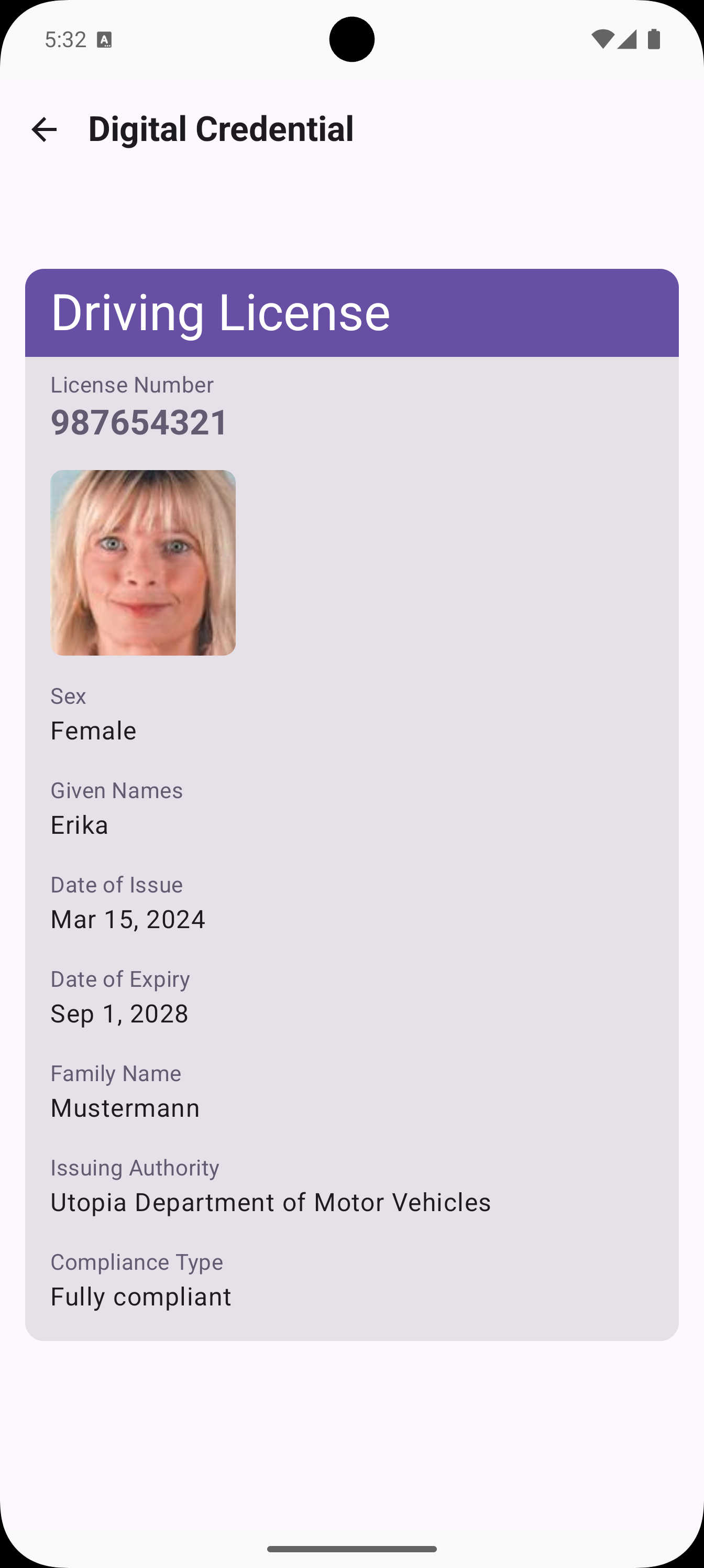
Add the Response Display Screen
After receiving the credential response, we need to display the data to the user. This is implemented using the `` Composable that verifies the cryptographic integrity of the response, extracts the credential data, and displays it.
// verification/ShowResponseScreen.kt
@Composable
fun ShowResponseScreen(
    response: ShowResponseDestination,
    documentTypeRepository: DocumentTypeRepository?,
    goBack: () -> Unit
) {
    val vpToken = response.vpResponse?.let { vpResponse ->
        Json.decodeFromString<JsonObject>(
            vpResponse.fromBase64Url().decodeToString()
        )
    }

    val sessionTranscript = response.sessionTranscript?.let {
        Cbor.decode(it.fromBase64Url())
    }

    val verificationResult =
        remember { mutableStateOf<VerificationResult>(VerificationResult.Loading) }
    val verificationResultValue = verificationResult.value

    LaunchedEffect(Unit) {
        val now = Clock.System.now()
        if (sessionTranscript == null) {
            verificationResult.value = VerificationResult.Error("Session transcript is null")
            return@LaunchedEffect
        }
        try {
            verificationResult.value = parseResponse(
                now = now,
                vpToken = vpToken,
                sessionTranscript = sessionTranscript,
                nonce = response.nonce,
                documentTypeRepository = documentTypeRepository,
            )
        } catch (e: Throwable) {
            Logger.e(TAG, "Error parsing response", e)
            verificationResult.value = VerificationResult.Error("Error parsing response")
        }
    }

    when (verificationResultValue) {
        is VerificationResult.Error -> Box(
            contentAlignment = Alignment.Center,
        ) {
            Text(
                text = "Error: ${verificationResultValue.errorMessage}",
                style = MaterialTheme.typography.headlineMedium,
                color = MaterialTheme.colorScheme.error
            )
        }

        is VerificationResult.Loading -> Box(
            contentAlignment = Alignment.Center,
        ) {
            CircularProgressIndicator()
        }

        is VerificationResult.Success -> SuccessScreen(
            values = verificationResultValue.documentValues,
            goBack = goBack
        )
    }
}
What this does:
- Step 1: Decodes the response data from base64url encoding
- Step 2: Verifies the cryptographic signatures using
verifyOpenID4VPResponse()function from the Multipaz SDK - Step 3: Validates the session transcript binding between request and response
- Step 4: Verifies the nonce matches to prevent replay attacks
- Step 5: Extracts and parses individual claims (data elements) from the credential
- Step 6: Separates image data (portraits) from text data (names, dates, etc.)
- Step 7: Displays the verified credential data in a user-friendly UI
Key Security Features:
- Cryptographic Verification: All signatures are verified before displaying data
- Session Binding: The session transcript ensures the response matches the request
- Nonce Validation: Prevents replay attacks by verifying the nonce
- Type Safety: Uses sealed classes to handle loading, success, and error states
- Error Handling: Gracefully handles verification failures
Note: You would want to copy-paste the ShowResponseScreen.kt file for the complete implementation.
Demo Screenshots